How to Turn Off Gemini in Gmail and Stop It Reading Your Emails (2026)
Google's help pages now say humans can review excerpts of emails Gemini reads. Here is how to turn off Gemini in Gmail, disconnect it from your inbox and stop the training, step by step.
 17 min read

To turn off Gemini in Gmail, open Gmail on a computer, click Settings, then See all settings, and on the General tab switch off Smart features in Google Workspace and Smart features in other Google products. That removes Gemini’s summaries and drafts inside Gmail. The Gemini app is a separate door: it can read your emails only if Gmail is connected to it, so also disconnect Gmail under Customize, then Connectors, and turn off Keep Activity.
The Gemini app reads your emails only if Gmail is connected, but then excerpts can be reviewed by humans and kept for up to three years, per Google’s help pages read November 13, 2026. Turn off Workspace smart features in Gmail, disconnect Gmail under Customize, Connectors, and turn off Keep Activity. For an inbox the provider cannot read, Proton Mail Plus is $1.99 a month until November 30, 2026.
Summarize this article with:
 ChatGPT
 Perplexity
 Claude
 Grok
Why bother now? In 2023, when Google first let its assistant (then called Bard) plug into Gmail, Docs and Drive, it promised that this content would not be seen by human reviewers. On November 10, 2026, columnist Jason Aten pointed out in Inc. that Google’s Gemini documentation no longer says that. We reread Google’s English help pages on November 13, 2026 to separate what is written from what is extrapolated, then wrote down every switch, menu by menu.
Updated November 13, 2026. We are an independent site, and this page contains affiliate links to Proton that can pay us a commission at no cost to you.
Two different Geminis touch your Gmail
Most guides mix up two things that Google controls with two different settings. Gemini inside Gmail and the Gemini app with Gmail connected are not switched off in the same place, and turning off one leaves the other untouched.
- Gemini in Gmail: the side panel, the “summarize this email” card and the drafting help you see inside Gmail itself. These depend on Gmail’s smart feature settings.
- The Gemini app with Connected Apps: when you ask gemini.google.com or the Gemini mobile app about your trip, your bills or a contract, it can search your inbox and Drive for you. That depends on what you connected in Gemini (Google calls it Personal Intelligence, Connected Apps or Connectors depending on the screen) and on your Keep Activity setting.
| Where Gemini shows up | What it can see | Where to turn it off |
|---|---|---|
| Gemini inside Gmail (summaries, drafts, side panel) | The emails you are working on | Gmail: Settings, See all settings, General, Google Workspace smart features |
| Gemini app with Gmail or Drive connected | Relevant emails and files it searches to answer you | Gemini: Customize, Connectors, More options, Disconnect |
| Your Gemini chat history | Everything you typed, plus what Gemini pulled from connected apps | Gemini: Activity, then turn off Keep Activity |
| Gemini as your phone’s assistant (Android) | What you ask by voice or the power button | Android settings: power button, Hey Google, default digital assistant app |
What Google’s help pages say now, and what changed since 2023
Google’s page “About personalization with Connected Apps” is blunt. It says that “a subset of Connected Apps data processed by Gemini is reviewed by human reviewers”, and that these reviewers include trained service providers working for Google. It also spells out what that data is: interactions, summaries, excerpts and inferences taken from your relevant emails and files.
Two details matter more than the headline. First, when an email or a file is short or especially relevant, Google says the “summary” may simply be the email or file itself. Second, if you submit feedback, or if Google needs to address abuse or harm, the page says human reviewers may also review some of your Gmail inbox or Photos library. You can read the wording yourself on Google’s Connected Apps help page.
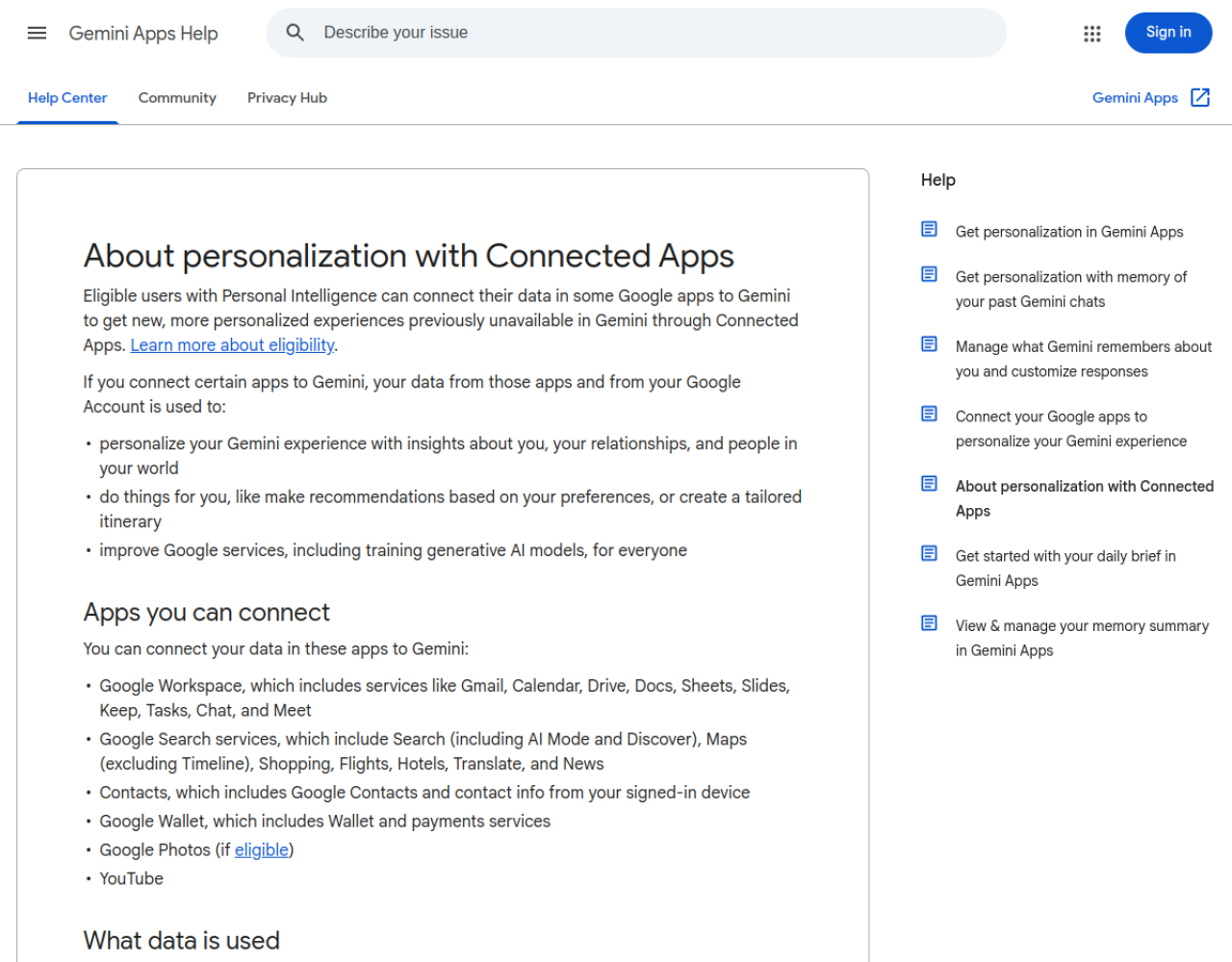
The same page carries a line that sums up the whole issue: “Please don’t connect your apps to Gemini Apps if they contain confidential information” you would not want a reviewer to see. The Gemini Apps Privacy Hub shows “Last updated: October 26, 2026”, and the privacy notice inside it is dated October 13, 2026. According to Inc., Google also added a quiet update to its 2023 blog post and now shows a pop-up nudging people to connect their apps, which states that this data is “used and human reviewed” under the privacy notice. The columnist’s main complaint is that the change came without a public announcement.
Review, training and retention: who can see what
Three separate mechanisms stack on top of each other, and they do not hang on the same switch. The table below sticks to what Google’s pages say, with no guesswork added.
| What can happen | When | What Google says |
|---|---|---|
| Human review of summaries and excerpts of your emails and files | Gmail, Drive or other apps connected to Gemini | Only a subset, reviewed by trained people including service providers; chats are disconnected from your account before they are sent to providers |
| Review of part of your Gmail inbox itself | If you send feedback, or to address abuse or harm | Stated on the Connected Apps page |
| Training of generative AI models | If Keep Activity is on | Not “directly” on your Gmail inbox, but on the summaries, excerpts and inferences drawn from it |
| Retention of reviewed chats | Once a chat has been reviewed | Up to three years, and not deleted when you delete your activity |
| Retention of normal activity | Keep Activity on | Auto-delete after 18 months by default (3 or 36 months, or never, if you change it) |
| Short retention | Keep Activity off, or a temporary chat | 72 hours with your account, to respond and keep the service safe |
Training is the subtle part. Google writes that Gemini does not train generative AI models directly on your Gmail inbox, Drive, Contacts or Calendar, then explains in the same answer that it trains on the summaries, excerpts, generated media and inferences taken from that data. In plain terms, your whole mailbox is not dumped into a dataset, but what Gemini pulled out of it to answer you can be.
Human review also needs context, and the Inc. column says so itself: this is not Google staff browsing your inbox at will. It is a sample of conversations, handled by specialist teams after Google says it has separated the data from your account. Still, if your inbox holds pay stubs, medical messages or signed contracts, one reviewed excerpt is already one too many.
“It’s opt-in”: true for some of it, not for all of it
The usual defense is partly right. Nobody’s emails get reviewed through the Gemini app unless Gmail or Drive was connected to it. When Google announced Personal Intelligence on January 14, 2026, it launched as a beta in the US for Google AI Pro and Ultra subscribers, and Google wrote that connecting your apps is off by default and that you choose which ones to connect.
The defense has limits, though. Keep Activity, the setting that opens the door to training, is on by default for anyone 18 or over, according to Google’s own help page. People who connected Gmail between 2023 and 2026 did so under the old promise, and nothing suggests those connections were reset when the rules changed. And for US readers there is one more point: Gmail’s help page says smart features are off by default if you live in the European Economic Area, Japan, Switzerland or the United Kingdom. The US is not on that list, so if you are in the US, do not assume Gemini’s Gmail features are off: check.
How to turn off Gemini in Gmail, step by step
The labels below are the ones on Google’s English help pages on November 13, 2026. Depending on your account, the Gemini screen may say Connectors, Connected Apps or Personal Intelligence: it is the same control.
Step 1: switch off Gemini features inside Gmail
- Open Gmail on a computer and click the gear icon (Settings), then See all settings.
- Stay on the General tab and scroll to Google Workspace smart features.
- Click Manage Workspace smart feature settings.
- Turn off Smart features in Google Workspace and Smart features in other Google products.
- Click Save at the bottom right.
According to Gmail’s smart features help page, the first switch removes things like asking Gemini to summarize content, create drafts and find key information, along with Gmail events in Calendar and personalized search in Drive. The second one turns off Personal Intelligence in the Gemini app and in Search for personal accounts, plus a few conveniences in Maps and Wallet. Google says smart feature changes apply across all devices and apps where you are signed in, including the Gmail app on Android and iPhone, though some changes made on a computer may not show up in the mobile app until you update it.
There is a third, older switch on the same General tab, under Smart features: “Turn on smart features in Gmail, Chat, and Meet.” Unchecking it removes Smart Compose, Smart Reply, automatic categorization of your inbox and summary cards. That is the nuclear option. Most people who only want Gemini gone can leave it on and keep their inbox tabs.
Step 2: disconnect Gmail and Drive from the Gemini app
- Go to gemini.google.com in a desktop browser.
- In the sidebar, select Customize. If you cannot find it, select More first.
- At the top, open the Connectors tab.
- For each connected app (Google Workspace, Gmail, Drive, Photos and so on), select More options, then Disconnect.
- Follow any prompts on screen.
Google states one catch in writing: disconnecting an app does not delete anything already saved in your Gemini Apps Activity. What Gemini already pulled from your inbox stays there, and can still be used to improve Google’s services. That is why step 3 matters.
Step 3: turn off Keep Activity and clear the history
- On gemini.google.com, open Activity.
- Near the top, click On, then choose Turn off or Turn off and delete activity.
- To erase the past, click Delete above your activity and choose All time.
- If you prefer to keep some history, at least set auto-delete to 3 months instead of the default 18.
With Keep Activity off, your future chats are no longer used to train Google’s models unless you send feedback, and Google Workspace apps such as Gmail and Drive are no longer available to Gemini; on Android, Google says Phone, Messages, WhatsApp and Device assistance keep working. Two limits remain. Google still keeps each conversation for up to 72 hours, and chats already reviewed by humans stay for up to three years, because they are no longer tied to your account.
Step 4: keep Gemini, but in temporary chats
If you like Gemini for general questions, temporary chats are a reasonable middle ground. The Privacy Hub says temporary chats are not used to train Google’s AI models and are kept for 72 hours. They do not solve the Connected Apps question, but they stop feeding your long-term history.
How to turn off Gemini on an Android phone (and iPhone)
Many readers really want to know how to turn off Gemini on their phone without breaking the rest of Google. On Android, Gemini lives in several places, according to Google’s page “Manage or delete the Gemini app on your Android device”. Menus vary a little between Pixel, Samsung and other brands.
- Power button: Settings, System, Gestures, “Press & hold power button”, then pick another action.
- Hey Google: in the Gemini app, open the menu, tap your profile picture or initial, then Settings, “Talk to Gemini hands-free”, and turn off Hey Google.
- Lock screen: same path, “Gemini on lock screen”, then turn off “Use Gemini without unlocking”.
- Back to Google Assistant: where your phone still offers it, the Gemini app settings include an option to switch back to Google Assistant.
- No assistant at all: Settings, Apps, Default apps, “Digital assistant app”, then set “Default digital assistant app” to None.
One trap: Google says that deleting the Gemini mobile app does not automatically remove Gemini as your default digital assistant. Change the default assistant first, then uninstall. That also answers a common question, “why can’t I delete Gemini?”: on many Android phones it ships as part of the system and can only be disabled or replaced as the assistant.
On an iPhone, Gemini is a regular app you can delete like any other. The Gemini features inside the Gmail app for iPhone follow the same account settings as step 1, since Google says smart feature changes apply across the devices where you are signed in.
Work and school accounts play by other rules
Everything above is about personal Google accounts. The Privacy Hub warns that with a work or school account, your use of Gemini may be subject to different data handling terms, and it points to the Google Workspace privacy pages. Your organization’s admin decides what Gemini can reach, so if your work inbox holds sensitive data, ask your IT team rather than hunting for a switch.
Freelancers and small business owners who run their business from a personal Gmail account are in a different spot: the consumer rules apply to them as written. That is often where the most delicate files live, from invoices and tax forms to copies of clients’ IDs.
If you want an inbox no AI can read: Proton Mail, Drive and Lumo
Turning switches off fixes the problem inside Google. If you want a provider that technically cannot read your email at all, the answer is encryption. Proton Mail and Proton Drive use end-to-end and zero-access encryption: according to Proton, only you can open what is stored, not even Proton. An assistant run by Proton therefore has no way to crawl your mailbox for training, because the company cannot read it.
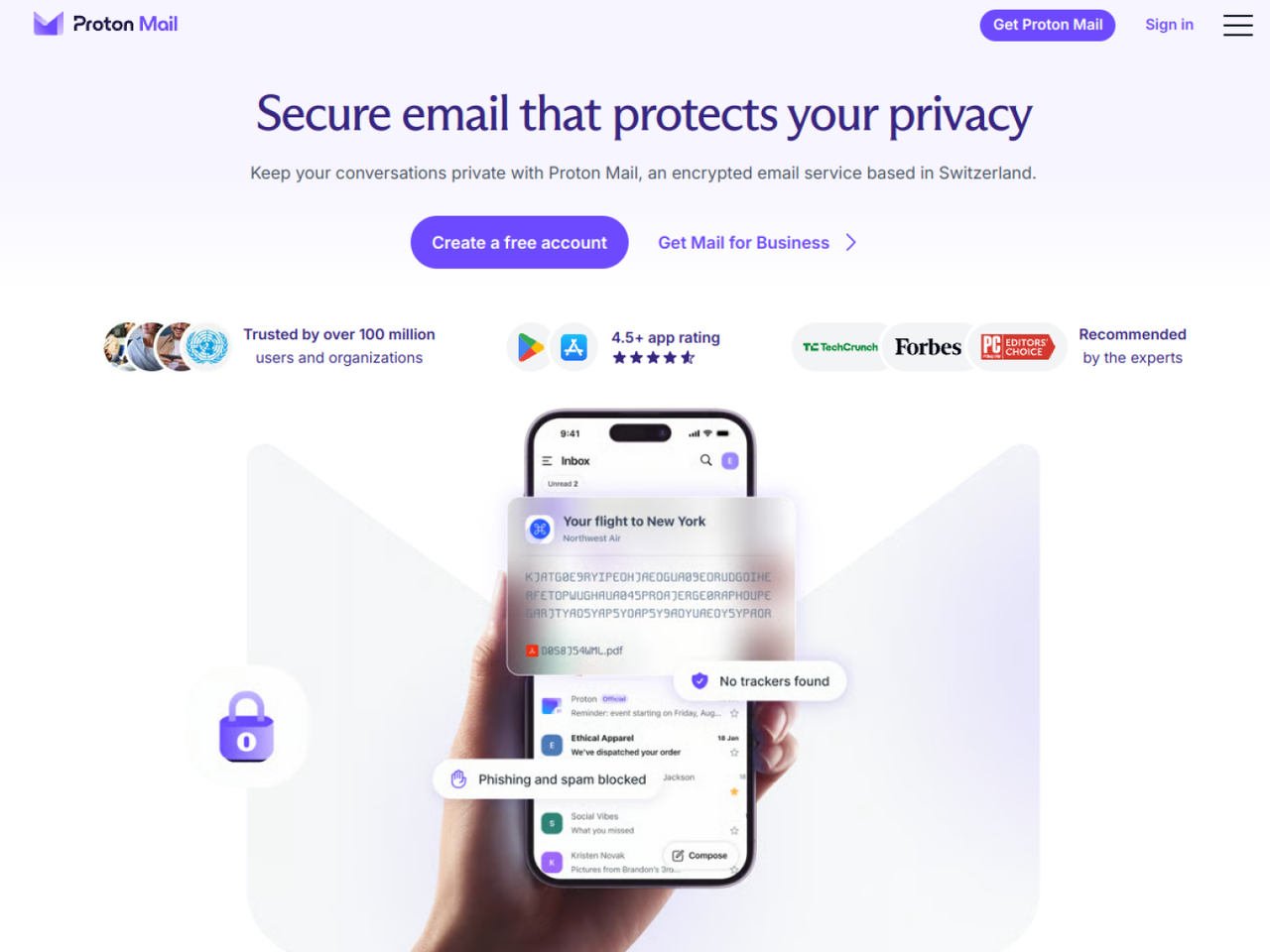
Proton also states the limit of that model. Zero-access encryption covers messages stored in Proton Mail; if you write to someone on Gmail, their provider can read the copy that lands in their inbox. Switching is easier than it sounds, since Proton’s Easy Switch tool imports email, contacts and calendars from Gmail, and the free plan lets you test it first.
For the assistant itself, Proton makes Lumo, an AI chat that keeps no logs of your conversations and does not train on them, according to Proton, with chat history stored under zero-access encryption. We tested it against ChatGPT in our Lumo review: it does not replace everything Gemini does, starting with access to your Google services, but that is exactly the point here.
| Point compared | Gemini with Gmail and Drive connected | Proton Mail, Drive and Lumo |
|---|---|---|
| Can the provider read stored content? | Yes, Gemini reads it to answer you | No, zero-access encryption according to Proton |
| Possible human review | Yes, a subset of summaries and excerpts | Not stated by Proton for Lumo, which keeps no logs |
| Model training | Yes if Keep Activity is on | No, according to Proton |
| Retention | 18 months by default, up to 3 years for reviewed chats | Lumo history encrypted and synced to your devices |
| Starting price | Free | Free; paid Mail and Drive plans on sale until November 30, 2026 |
An inbox Google’s AI cannot reach
Proton Mail: free, or Mail Plus at $1.99 a month until November 30
End-to-end encrypted email that Proton itself cannot read. $23.88 for the first 12 months for new customers, then $47.88 a year. 30-day money-back guarantee.
See the Proton Mail dealAffiliate link: we may earn a commission at no extra cost to you. Price read on November 13, 2026; confirm it on the checkout page.
Proton’s Black Friday prices, until November 30, 2026
Proton’s Black Friday sale runs from October 26 to Monday, November 30, 2026, and these discounts are reserved for Proton’s partner links, ours included. We read the prices below on November 13, 2026, in US dollars, on the offer pages our links lead to. They apply to new customers, and plans renew automatically at the regular price after the first term.
| Plan | Black Friday price | Billed for the first term | Renewal |
|---|---|---|---|
| Proton Mail Plus (12 months) | $1.99 a month instead of $4.99 (60% off) | $23.88 | $47.88 every 12 months |
| Proton Drive Plus, 200 GB (12 months) | $1.99 a month (60% off) | $23.88 | $47.88 every 12 months |
| Proton Unlimited (12 months) | $6.49 a month instead of $12.99 (50% off) | $77.88 | $119.88 every 12 months |
| Lumo Plus (yearly) | $9.99 a month, no Black Friday deal shown | $119.88 | $119.88 every 12 months |
To leave Gmail, Mail Plus is the logical plan: your own domain, more addresses and more storage than the free tier, for $23.88 the first year. If you also want your files out of Google Drive, Proton Drive Plus costs the same, and Unlimited bundles Mail, Drive, Pass and the VPN covered in our Proton VPN review. Every current Proton offer is listed on our Proton Black Friday page.
One honest caveat: encryption improves privacy, not uptime. Proton can have outages like any hosted service, and Microsoft’s Outlook went down for many users this very week. Our Outlook outage guide explains why a backup address with a second provider is the real safety net, whichever inbox you pick.
Our pick to move off Gmail
Proton Mail Plus: $23.88 for the first year
Black Friday price for new customers through November 30, 2026. Drive Plus is $1.99 a month too, and Lumo works free without an account.
See Proton Mail Proton Drive Try LumoAffiliate links: we may earn a commission at no extra cost to you. Prices read on November 13, 2026.
Frequently asked questions
Can Gemini read my emails?
Yes, if Gmail is connected to the Gemini app: it searches your inbox to answer your requests. Without that connection the Gemini app cannot reach your mailbox, while Gemini’s features inside Gmail depend on Gmail’s own smart feature settings. Check Customize, then Connectors, in Gemini to see what is linked.
Do Google employees read my emails?
Not at will. Google says a subset of chats, including summaries and excerpts from connected apps, is reviewed by trained reviewers, some of them service providers, after being disconnected from your account. If you send feedback or abuse is suspected, part of your Gmail inbox can also be reviewed.
Why is Gmail forcing me to use Gemini?
Gemini appears in Gmail because Google Workspace smart features are switched on for your account, which Gmail’s help page does not list as off by default in the US. Turn them off under Settings, See all settings, General, Manage Workspace smart feature settings, then Save.
How do I get my Gmail inbox back to normal?
Switching off Smart features in Google Workspace removes Gemini’s summaries and drafts while keeping your inbox tabs and Smart Compose. Only uncheck “Turn on smart features in Gmail, Chat, and Meet” if you also want to lose categorization, Smart Reply and summary cards.
Is there any way to turn Gemini off completely?
Yes, in four places: Gmail’s smart features, the Connectors tab in Gemini, the Keep Activity setting, and on Android the power button, Hey Google and default digital assistant settings. Google Search, Gmail and your other Google services keep working.
Why can’t I delete Gemini on my phone?
On many Android phones Gemini is built in as the assistant. Set Settings, Apps, Default apps, Digital assistant app to None first, because Google says deleting the Gemini app does not remove it as your default assistant.
Are my emails used to train Google’s AI?
Not directly, according to Google, but summaries, excerpts and inferences drawn from your emails can be if Gmail is connected to Gemini and Keep Activity is on. Turning Keep Activity off stops your future chats from being used for training, unless you send feedback.
What is a safer email than Gmail?
For privacy, an end-to-end encrypted service such as Proton Mail, which says it cannot read stored messages. It has fewer features than Gmail and cannot protect a message once it lands in a Gmail recipient’s inbox. The free plan lets you try it, and paid plans are discounted until November 30, 2026.
Sources read on November 13, 2026: Google’s Gemini Apps Privacy Hub; the help pages About personalization with Connected Apps, Use and manage Connected Apps in Gemini, Manage and delete your activity in Gemini Apps, and Manage or delete the Gemini app on your Android device; Gmail Help on smart features; Google’s blog post of January 14, 2026 on Personal Intelligence; Jason Aten’s column in Inc. of November 10, 2026; Proton’s pages on zero-access encryption and Lumo, and its partner offer pages.